NordVPN’s Meshnet is a fantastic way to connect all your devices no matter where they are in the world, and you can do it all for free.
Acting as a local area network (LAN) but on a much broader scale, it allows you to share files between devices on the fly, remotely access smartphones, tablets, laptops, and more, and even let you swap IP addresses (although not as good as the best VPNs).
Wondering how to set it up? This guide will show you how to install Meshnet on all you devices and how to link them so you can start connecting directly.
How to install Meshnet
Getting started using Meshnet is easy; you only need to install the NordVPN app on your device and activate the feature.
It’s important to note that the same method can be applied to Windows, macOS, Android and iOS devices.
Go to the NordVPN website
Download and install the NordVPN app
Create a NordVPN account or sign in
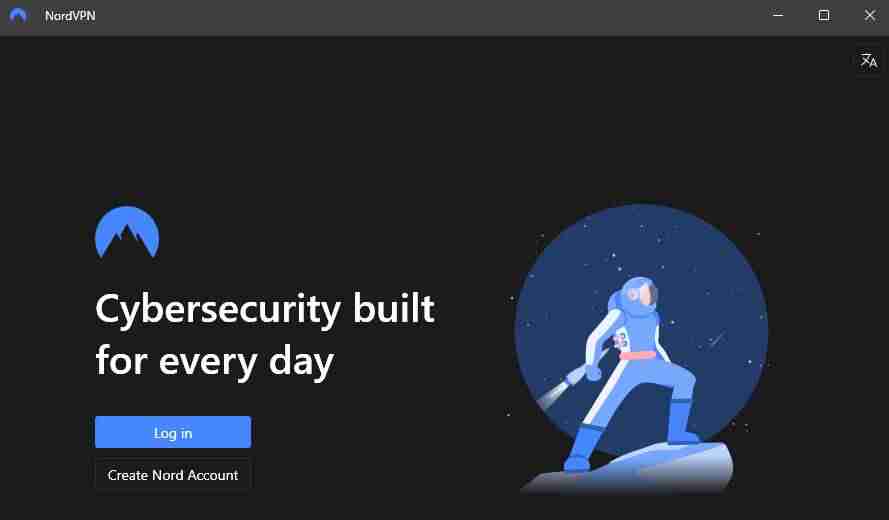
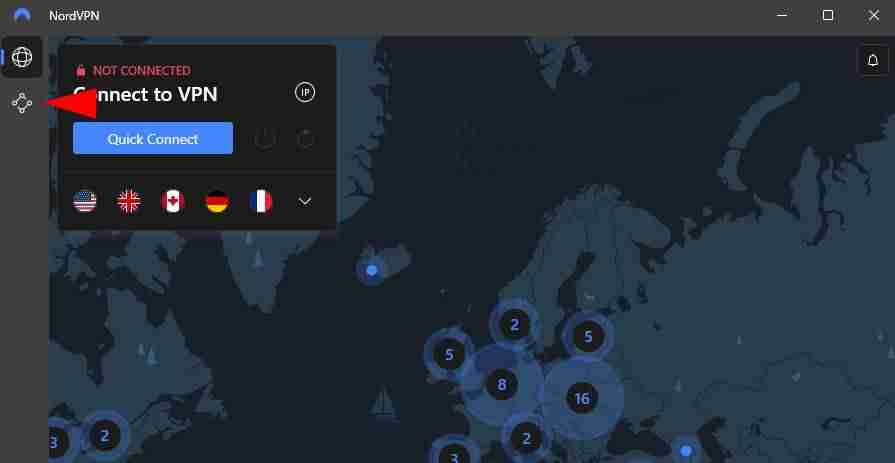
Select the Meshnet icon on the sidebar
Turn on Meshnet
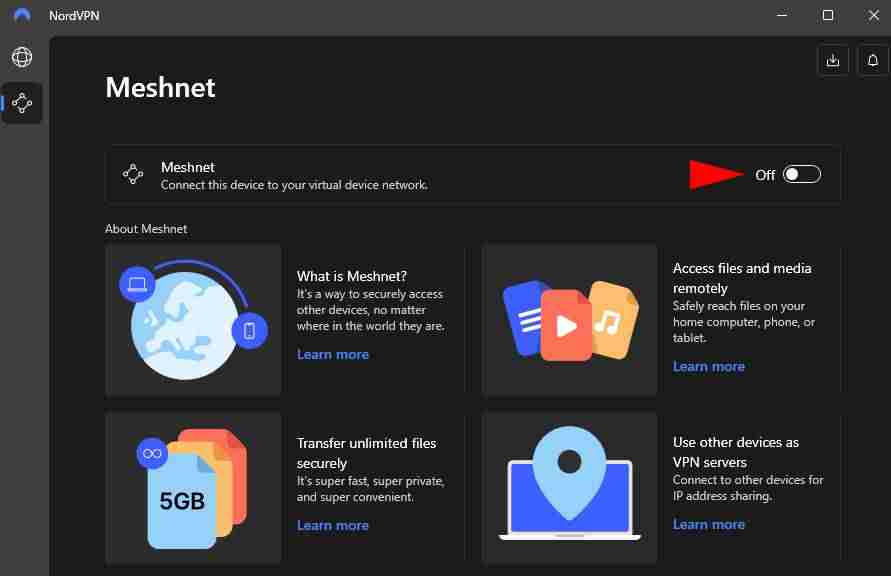
There you have it. You can connect up to 10 personal devices and up to 50 external devices.
Repeat the method above with 10 of your own devices and connect more from friends or family to start growing your personal network.
How to link devices in Meshnet
Linking devices to your Meshnet network is simple, as you only need to setup Meshnet on another device using the same account. If you’re adding another user’s device, known as external devices, you’ll need to know the other user’s email address.
- In the Meshnet tab on NordVPN, click Link devices.
- A menu will pop up. Here, select Link external devices.
- Enter the email address of the NordVPN user to invite them to access your connected device.
- Select permissions. This includes:
– Allow receiving files
– Allow traffic routing
– Allow local network access
– Allow remote access. - Once done, click Send invitation.
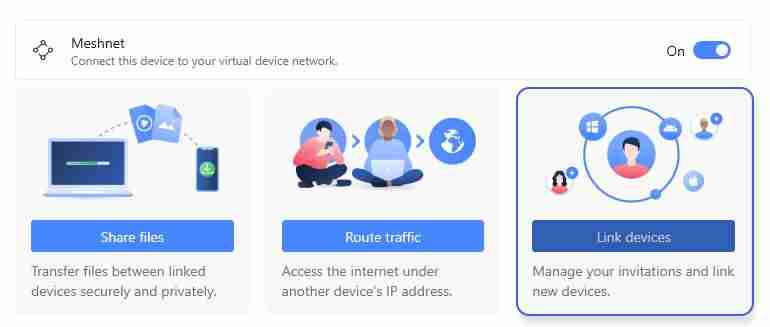
When the user accepts the invitation, the external device will appear on a list of connected external devices.
What is Meshnet?
Meshnet is a type of virtual network that works like a LAN. It allows you to connect to devices directly instead of relying on an internet connection or cables. These devices can communicate with each other without any restrictions, no matter where they are in the world.
With Meshnet, you can create private networks between your personal and work devices and share an Internet Protocol (IP) address. This opens up a lot of use cases, including file sharing, remote device access, gaming over a LAN connection with friends, and even bypassing geo-restricted content online, similar to a VPN (albeit with limitations).

Because of its direct connection between devices, there’s no need to set up port forwarding on a router or configure a firewall to only allow specific traffic. Furthermore, it allows you to get past devices behind carrier-grade NAT (CGNAT) networks, which Internet Service Providers (ISPs) use to provide internet access with a single IP address to devices in a household or office space.
The feature is also handy for professionals, as it can access connected work PCs with an encrypted connection without the need to use a VPN provided by the company.
Meshnet is a feature from NordVPN and requires you to install the NordVPN app on each device you want to connect, but it’s entirely free to use. You can connect up to 10 of your own devices and up to 50 external devices from other users.
Can you use Meshnet for free?
While Meshnet is part of NordVPN and needs the app installed on each device, you don’t need a NordVPN subscription in order to use it.
Meshnet is a free feature that can be used by up to 10 personal devices and up to 50 external devices from other trusted users. It’s available on multiple platforms, including Windows, macOS, Linux, Android, and iOS.
Once you have a NordVPN account, you can turn on the feature and start connecting your devices at no charge.